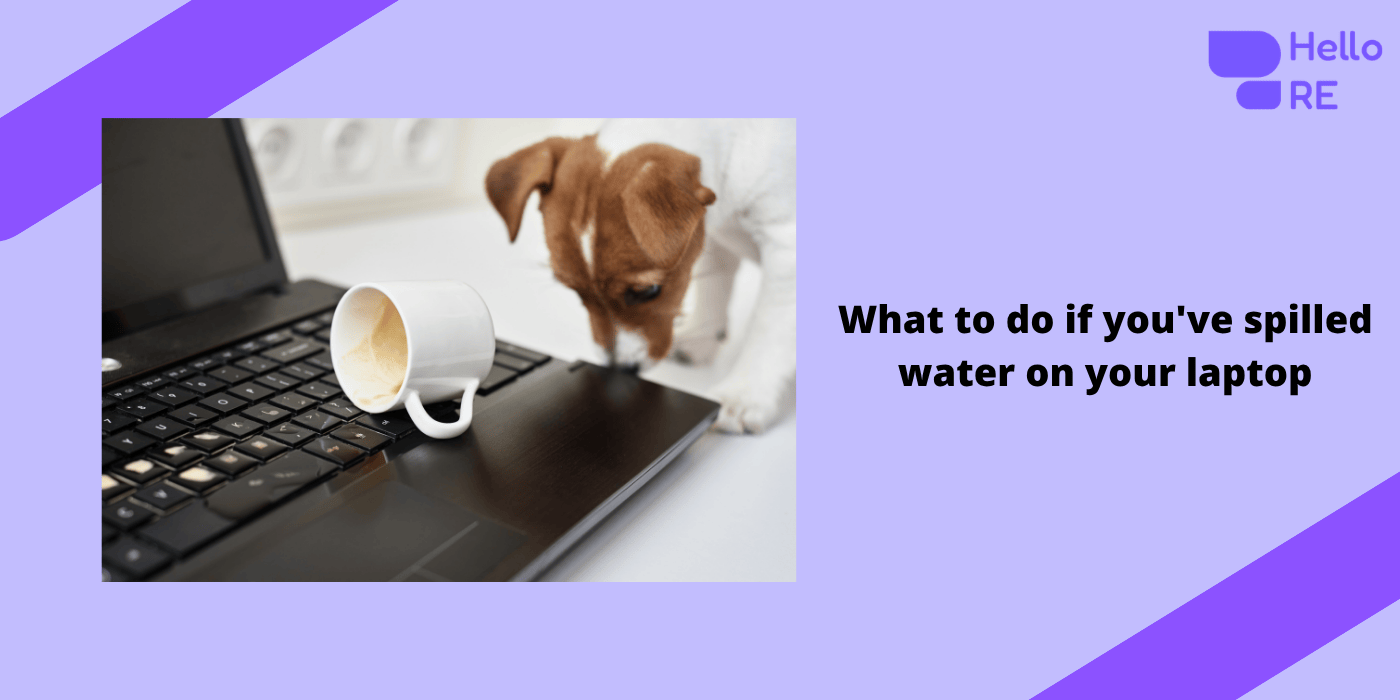
Understanding the Risks of Water Damage
Water and electronics are a disastrous combination. When water seeps into the delicate circuitry of your MacBook, it can cause short circuits, corrosion, and irreparable damage. The immediate threat is short-circuiting, which occurs when water bridges gaps between electrical contacts that shouldn’t be connected. This can result in permanent hardware damage, rendering your MacBook unusable.
Beyond short-circuiting, water damage can lead to corrosion over time. Corrosion is the gradual destruction of metal due to a chemical reaction with water and other substances, such as salts or minerals. This process can degrade the integrity of internal components, causing them to malfunction or fail entirely. Even if your MacBook initially seems to survive the spill, corrosion can cause problems weeks or months later.
Understanding these risks highlights the importance of immediate and appropriate action following a water spill. Quick and effective response can mean the difference between saving and losing your device. It’s not just about drying the surface; it’s about preventing long-term damage and ensuring the internal components remain intact.
Immediate Actions to Take After a Spill
The moment you realize your MacBook has been exposed to water, speed is of the essence. First, power down your device immediately. If your MacBook is plugged in, disconnect it from the power source to eliminate the risk of electric shock. Avoid pressing any keys or buttons, as this can push water further into the device.
Once the MacBook is powered down, position it to minimize water penetration. The best way to do this is to open it as wide as possible and place it upside down in a tent-like position. This allows gravity to help drain the water out of the keyboard and ports. Some people also advocate placing the MacBook on a towel to absorb any water that drips out.
Next, remove any connected peripherals, such as USB cables, external drives, and SD cards. These accessories can also be affected by water damage and need to be dried separately. By isolating your MacBook and its accessories, you can better focus on the immediate task of drying and assessing the damage.
Assessing the Severity of the Damage
Assessing the extent of water damage is crucial to determine the appropriate next steps. Begin by inspecting the exterior of your MacBook for any visible signs of water ingress. Look for water droplets on the screen, keyboard, and ports. If you notice any liquid, gently dab the area with a soft, lint-free cloth to remove as much moisture as possible.
Next, consider the type of liquid that was spilled. Water is less damaging than sugary or acidic liquids like soda, coffee, or juice. Sugary liquids can leave behind residues that are more challenging to clean and can cause more severe damage. If you suspect that the spilled liquid is anything other than water, you may need to take additional cleaning steps.
If the exterior inspection reveals significant water exposure, it's likely that the internal components have been affected as well. In this case, you should prepare to disassemble your MacBook to dry and clean the interior. However, if the spill was minor and the exterior appears dry, you may still want to monitor your MacBook closely for any signs of malfunction in the coming days.
Disassembling Your MacBook Safely
Disassembling your MacBook is a delicate process that requires patience and precision. Before you begin, ensure that you have the necessary tools, such as a set of precision screwdrivers, plastic prying tools, and an anti-static wrist strap. These tools will help you safely open your MacBook without causing further damage.
Start by removing the screws from the bottom case of your MacBook. Depending on your model, you may need a specific type of screwdriver, such as a Pentalobe or Torx driver. Keep track of the screws and their locations, as they can vary in size and length. Once the screws are removed, use a plastic prying tool to gently lift the bottom case away from the rest of the MacBook.
With the bottom case removed, you will have access to the internal components. Be cautious not to touch any of the components directly, as static electricity can cause damage. Use the anti-static wrist strap to ground yourself and prevent static discharge. Take note of any visible moisture and prepare to dry and clean the affected areas.
Drying Techniques for Water-Damaged MacBooks
Drying your MacBook thoroughly is crucial to prevent long-term damage. Begin by gently blotting any visible moisture with a soft, lint-free cloth. Avoid using paper towels or tissues, as they can leave behind fibers that may cause further issues. Focus on absorbing as much surface moisture as possible before moving on to more thorough drying methods.
One effective drying technique is to use a can of compressed air to blow out any remaining moisture from the internal components. Hold the can upright and use short bursts of air to avoid freezing the components. Pay special attention to areas like the keyboard, ports, and ventilation openings, where water is more likely to accumulate.
Another popular method is to use silica gel packs or uncooked rice to absorb moisture. Place your disassembled MacBook in a large, sealable plastic bag or container, along with several silica gel packs or a generous amount of uncooked rice. Seal the bag or container and leave it in a dry, warm place for at least 48 hours. This will help draw out any remaining moisture from the internal components.
Cleaning Internal Components: What You Need to Know
Cleaning the internal components of your MacBook is a delicate task that requires careful attention to detail. If the spilled liquid was anything other than water, such as soda or coffee, you may need to clean the affected components to remove any sticky residues. Use a high-quality isopropyl alcohol (90% or higher) and a soft, lint-free cloth to gently clean the components.
Dip the cloth in the isopropyl alcohol and wring out any excess liquid. Gently wipe down the affected areas, taking care not to apply too much pressure. The alcohol will help dissolve any residues and evaporate quickly, minimizing the risk of further damage. Avoid using household cleaning products, as they can leave behind residues that may harm the components.
If you're unsure about cleaning specific components, such as the logic board or battery, it's best to consult the user manual or seek professional help. Some components are more sensitive than others and may require specialized cleaning techniques. When in doubt, it's better to err on the side of caution to avoid causing further damage.
When to Seek Professional Help - HelloRe
While it's possible to handle minor water damage on your own, there are situations where professional help is necessary. If the spill was extensive or involved a sugary or acidic liquid, it's best to consult a professional technician. They have the expertise and specialized equipment to properly clean and repair water-damaged MacBooks.
Additionally, if your MacBook shows signs of severe damage, such as a blank screen, unusual noises, or failure to power on, it's time to seek professional assistance. These symptoms indicate that the internal components have been significantly affected and may require advanced repair techniques. Attempting to fix these issues on your own can lead to further damage and void your warranty.
If your MacBook is still under warranty or covered by AppleCare, contact Apple Support for guidance on how to proceed. They can provide information on repair options and help you determine if your warranty covers the damage. Keep in mind that unauthorized repairs can void your warranty, so it's important to follow the appropriate channels for professional assistance.
Preventive Measures to Avoid Future Spills
Preventing future spills is key to protecting your MacBook from water damage. One effective measure is to use a keyboard cover or skin. These accessories provide an additional layer of protection against spills and can be easily removed and cleaned. Look for high-quality covers that fit your MacBook model snugly and do not interfere with typing or trackpad functionality.
Another preventive measure is to create a spill-free workspace. Avoid placing drinks or liquids near your MacBook, and use spill-proof containers whenever possible. If you need to have a beverage nearby, consider using a cup holder or coaster with a raised edge to minimize the risk of accidental spills. Establishing good habits can go a long way in preventing accidents.
Additionally, consider investing in a waterproof laptop sleeve or case. These accessories provide added protection when transporting your MacBook and can help prevent water damage from unexpected spills or rain. Look for sleeves or cases with a secure zipper or closure to ensure maximum protection.
Tips for MacBook Maintenance and Care
Regular maintenance and care are essential to keep your MacBook in optimal condition. Start by cleaning the exterior regularly to remove dust, dirt, and fingerprints. Use a soft, lint-free cloth slightly dampened with water or a mild cleaning solution. Avoid using abrasive materials or harsh chemicals, as they can damage the surface.
Periodically check and clean the ports and ventilation openings to ensure proper airflow and prevent overheating. Use a can of compressed air to blow out any dust or debris that may have accumulated. This simple step can help maintain the performance and longevity of your MacBook by preventing overheating and ensuring efficient cooling.
Finally, keep your software and firmware up to date. Regularly updating your operating system and applications can improve performance, fix bugs, and enhance security. Enable automatic updates to ensure you receive the latest features and improvements. Regular backups are also crucial to protect your data in case of unexpected issues.
Conclusion: Protecting Your Investment
A water spill on your MacBook can be a stressful experience, but with the right knowledge and actions, you can minimize the damage and protect your investment. Understanding the risks of water damage and taking immediate action are crucial steps in the recovery process. Assessing the severity of the damage, safely disassembling your MacBook, and using effective drying and cleaning techniques can make a significant difference.
Knowing when to seek professional help is also important to ensure proper repair and avoid voiding your warranty. Preventive measures, such as using keyboard covers, creating a spill-free workspace, and investing in protective accessories, can help prevent future spills and protect your MacBook from water damage.
Regular maintenance and care are essential to keep your MacBook in optimal condition. By following these tips and staying proactive, you can enjoy your MacBook for years to come. Remember, accidents happen, but with the right approach, you can handle a MacBook water spill effectively and safeguard your valuable device.