_ce376e5cfe6cbb742d3eb50e0266de2a.png)
A frozen, dark Touch Bar usually means one of two things: a software glitch that a restart or SMC reset can clear in minutes, or a hardware fault like a worn ribbon cable that requires a visit to an apple service center in Bangalore. If your MacBook Pro Touch Bar is not working, start with the free fixes below before assuming the worst.
Key Takeaways
- Software first, hardware second: Most black or unresponsive Touch Bar cases clear up after a force restart, SMC reset, or macOS update — no tools or disassembly needed.
- Flexgate is real: 2016-2017 MacBook Pro models are prone to a ribbon cable fault that dims the Touch Bar before it fails completely; this needs a cable or module replacement, not a software fix.
- Liquid and heat matter locally: Bengaluru's monsoon spills and humid storage conditions are a common trigger for corrosion-related Touch Bar failures.
- Warranty risk with DIY: Opening the chassis yourself to inspect the Touch Bar cable can void a remaining Apple warranty or third-party repair warranty.
- Doorstep diagnosis available: HelloRe's certified technicians can test and often fix Touch Bar issues at your home or office in Bengaluru, backed by up to a 12-month warranty on parts and labor.
At a Glance: Touch Bar Problems and Fixes
| Symptom | Likely Cause | Recommended Fix | Typical Time |
|---|---|---|---|
| Touch Bar completely black, rest of Mac works fine | Software freeze or stuck process | Force restart | 2-3 minutes |
| Touch Bar unresponsive after a macOS update | Corrupted firmware update | Reinstall macOS via Recovery Mode | 30-60 minutes |
| Brightness stuck too high or too low | NVRAM/PRAM settings corrupted | NVRAM reset | 2-3 minutes |
| Touch Bar flickers or dims before going dark | Flexgate ribbon cable wear (2016-2017 models) | Cable or Touch Bar module replacement | Same day to 48 hours |
| Touch Bar dead after a liquid spill | Corrosion or short circuit on logic board | Professional cleaning and component-level repair | 2-5 days depending on damage |
| Wrong icons or missing Control Strip | App or settings conflict | Reset Control Strip in System Settings | 5 minutes |
| Touch Bar works but Touch ID fails | T1/T2 security chip fault | Logic board level diagnosis | 1-3 days |
Why Is My MacBook Pro Touch Bar Not Working?
The Touch Bar sits on top of the keyboard on 13-inch, 15-inch, and 16-inch MacBook Pro models sold between late 2016 and 2022. It replaced the function key row with a dynamic OLED strip that changes based on the app you're using. Because it's controlled by a separate chip (the T1 or T2 security chip on most Touch Bar models), it can misbehave independently of the rest of the laptop, which is exactly why your Mac might work perfectly while the Touch Bar stays dark.
There are usually five root causes behind a non-responsive Touch Bar:
- A stuck software process that freezes the Control Strip or the entire bar.
- A failed or interrupted macOS update that leaves the Touch Bar firmware out of sync with the operating system.
- Corrupted NVRAM settings affecting brightness and display behavior.
- Physical wear on the ribbon cable, widely known as the Flexgate issue, common in 2016 and 2017 models where repeated screen opening and closing frays the cable over a few years.
- Liquid damage or corrosion reaching the logic board or Touch Bar connector.
Bengaluru's weather plays a bigger role here than most owners realize. Heavy monsoon spells between June and September mean laptops travel in damp bags, sit near open windows, or get splashed at cafés and co-working spaces. Combine that with the city's dust and occasional power fluctuations, and you get a higher-than-average share of liquid and corrosion-related Touch Bar failures compared to drier regions. If you work from cafés in Indiranagar or co-working spaces in Koramangala, keeping your MacBook in a padded sleeve during commutes is a small habit that prevents a costly repair later.
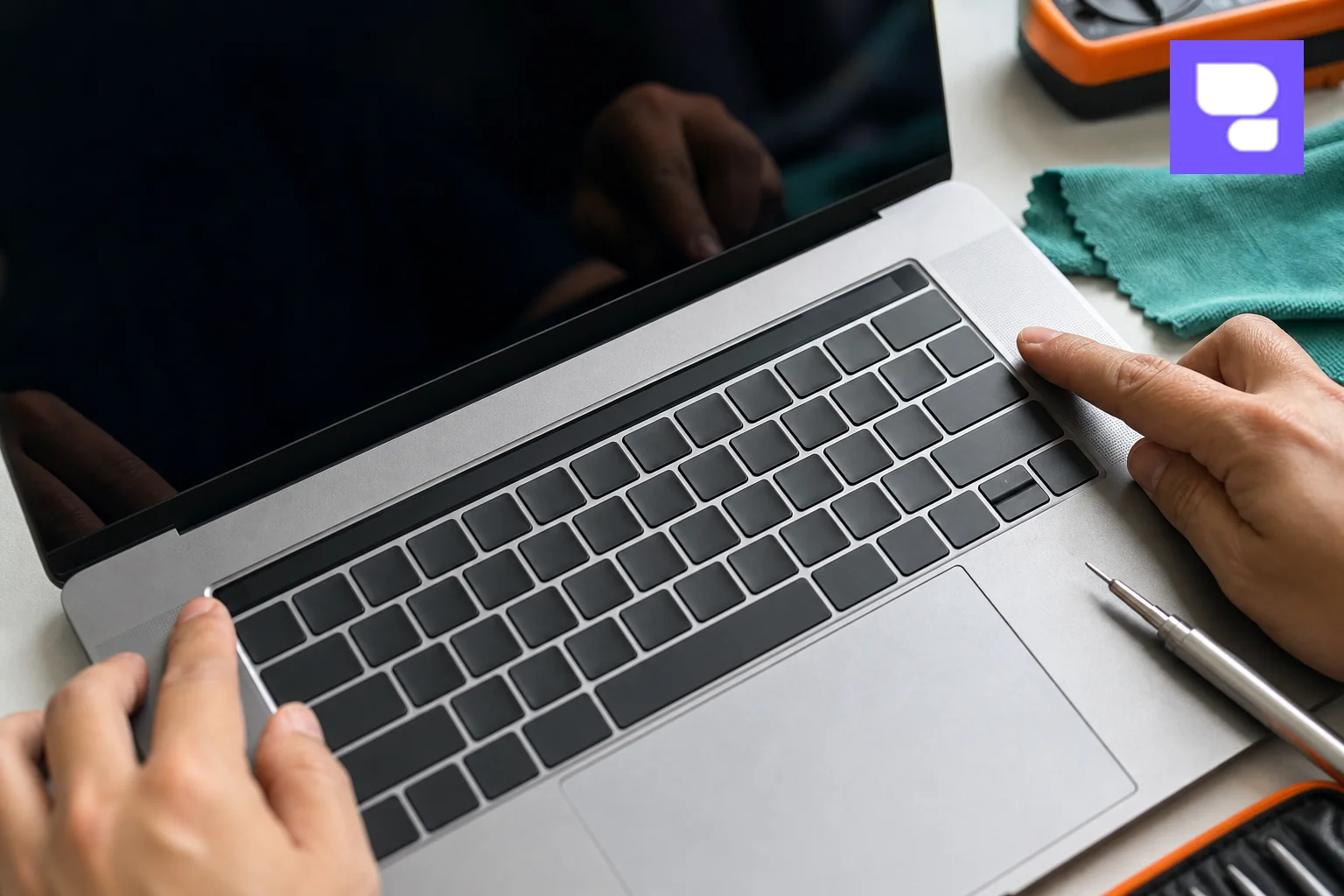
1. Force Restart Your MacBook Pro
This is the fastest fix and solves the majority of cases where the Touch Bar has simply frozen. Press and hold the power button for about 10 seconds until the screen goes black, then release and press it again to turn the Mac back on. If the Touch Bar was frozen because of a stuck app or system process, it should return to normal immediately after startup.
Try this first whenever the Touch Bar suddenly goes blank mid-session, especially if it happened right after opening a demanding app or during a video call. A force restart clears temporary memory without touching your files, so there's no risk involved.
2. Reset the SMC (System Management Controller)
The SMC manages power, battery, thermal behavior, and Touch Bar backlighting on Intel-based MacBook Pros. A corrupted SMC setting can leave the Touch Bar stuck at zero brightness or completely unresponsive to touch, even though the rest of the system runs normally.
On MacBook Pro models with the T2 chip (2018 to 2020), shut the Mac down completely, then hold Shift + Control + Option along with the power button for about 10 seconds, and release. On older non-T2 models, the key combination is similar but performed with the battery-integrated design in mind — shut down, then hold Shift + Control + Option + Power for 10 seconds before letting go.
If you own an Apple Silicon MacBook Pro (M1, M2, or M3 with a Touch Bar-less design), this step doesn't apply since Apple removed the Touch Bar starting with the M1 Pro/Max 14-inch and 16-inch models in 2021. SMC resets are relevant only for Intel-based Touch Bar Macs.
3. Reset NVRAM/PRAM
NVRAM stores small settings like display resolution, startup disk selection, and, in Touch Bar Macs, some brightness and function key preferences. If your Touch Bar shows the wrong brightness level or ignores your function key settings, a reset here often clears it up.
Shut down your Mac, then turn it on and immediately press and hold Option + Command + P + R for about 20 seconds, until you hear the startup chime twice (or see the Apple logo appear and disappear twice on Macs with the T2 chip). Release the keys and let the Mac boot normally.
This step takes under three minutes and has no effect on your stored files or apps. It only clears low-level firmware settings.
4. Update or Reinstall macOS
The Touch Bar runs its own small firmware layer that ties directly to your macOS version. If an update was interrupted, say due to a sudden battery drain or an accidental shutdown, the Touch Bar firmware can end up mismatched with the rest of the system, leaving it dark or glitchy.
Open System Settings, go to General, then Software Update, and install anything pending. If the Touch Bar problem started right after a recent update, sometimes the safer move is a full reinstall through Recovery Mode: restart while holding Command + R, then choose Reinstall macOS from the utility window. This keeps your files intact while replacing system and firmware files that may be corrupted.
Give the reinstall time to complete without interruption, a power cut mid-process on an already unstable Mac can make things worse, so plug in your charger before you start.
5. Check Control Strip and Touch Bar Settings
Sometimes the Touch Bar isn't broken at all, it's just showing the wrong layout or missing icons because of a settings conflict. Go to System Settings, then Keyboard, and look for the Touch Bar customization options. Restoring the default Control Strip here often resolves cases where certain apps seem to "steal" the Touch Bar display or where icons appear scrambled.
Third-party keyboard or productivity apps that customize the Touch Bar (common with some coding tools and creative software) can occasionally conflict with macOS's own Touch Bar management. If the problem appeared after installing a new app, try uninstalling it or checking for an updated version before assuming a hardware fault.
6. Inspect for Physical or Liquid Damage
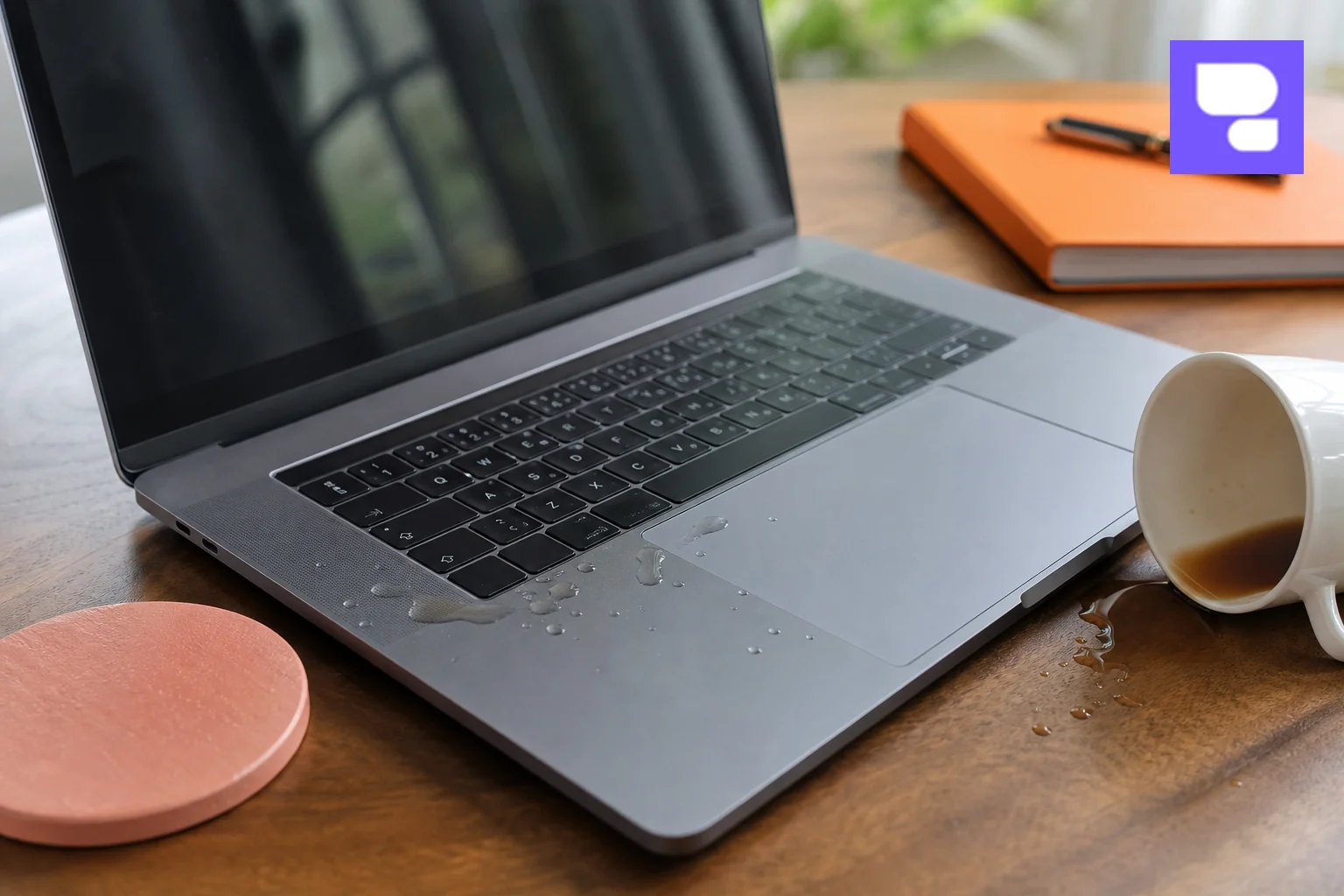
If none of the software fixes work, or if the Touch Bar was fine one moment and dark the next after a knock, spill, or drop, you're likely dealing with a hardware problem rather than a settings issue.
Watch for these warning signs:
- Flickering or dimming before failure: A classic sign of Flexgate, where the thin ribbon cable connecting the Touch Bar to the logic board wears out from repeated lid movement. This mostly affects 2016 and 2017 13-inch and 15-inch MacBook Pro models.
- Sudden failure after a spill: Coffee, water, or juice reaching the keyboard deck can short the Touch Bar connector or cause slow corrosion that shows up days later.
- Touch Bar works but Touch ID doesn't: This can point to a T1/T2 chip-level issue rather than a simple cable fault.
- Visible discoloration or a burnt smell near the keyboard: A sign of internal short circuit that needs immediate professional attention.
Do not attempt to open the chassis yourself to inspect the ribbon cable. MacBook Pro Touch Bar models use adhesive-mounted batteries right underneath the keyboard deck, and prying the case open without the right tools risks puncturing the battery or damaging surrounding components. This is one repair best left to a technician with proper anti-static equipment and genuine replacement parts.
When Software Fixes Don't Work: Professional Repair Options
Once you've ruled out software causes, there are three common repair paths depending on what's actually wrong:
- Flexgate cable replacement: The technician swaps the worn ribbon cable connecting the Touch Bar to the logic board. This is a well-documented fix for 2016-2017 models and usually restores full function without needing a new logic board.
- Touch Bar module replacement: If the OLED strip itself is physically damaged (cracked, discolored, or unresponsive to touch even after a cable swap), the entire Touch Bar module is replaced.
- Logic board level repair: When liquid damage has reached the T1/T2 chip or nearby components, a component-level repair or logic board replacement may be required. This is more involved and should only be handled by technicians experienced with MacBook logic boards.
Skipping straight to an unauthorized shop for chip-level work is where many Bengaluru users run into trouble. Reflowing or replacing a T2 chip requires precision soldering equipment and genuine components; a rushed job can leave your Mac stuck in recovery loops or unable to boot at all. It's worth checking a repair provider's track record with logic-board-level work specifically, not just general screen or battery replacements.
HelloRe's technicians handle the full range of MacBook repairs, from screen and keyboard repairs to logic board and liquid damage cases, with certified parts and up to a 12-month warranty on the work performed. You can start with either a doorstep visit or a walk-in appointment at their HSR Layout store, depending on how comfortable you are having the diagnosis done at home.
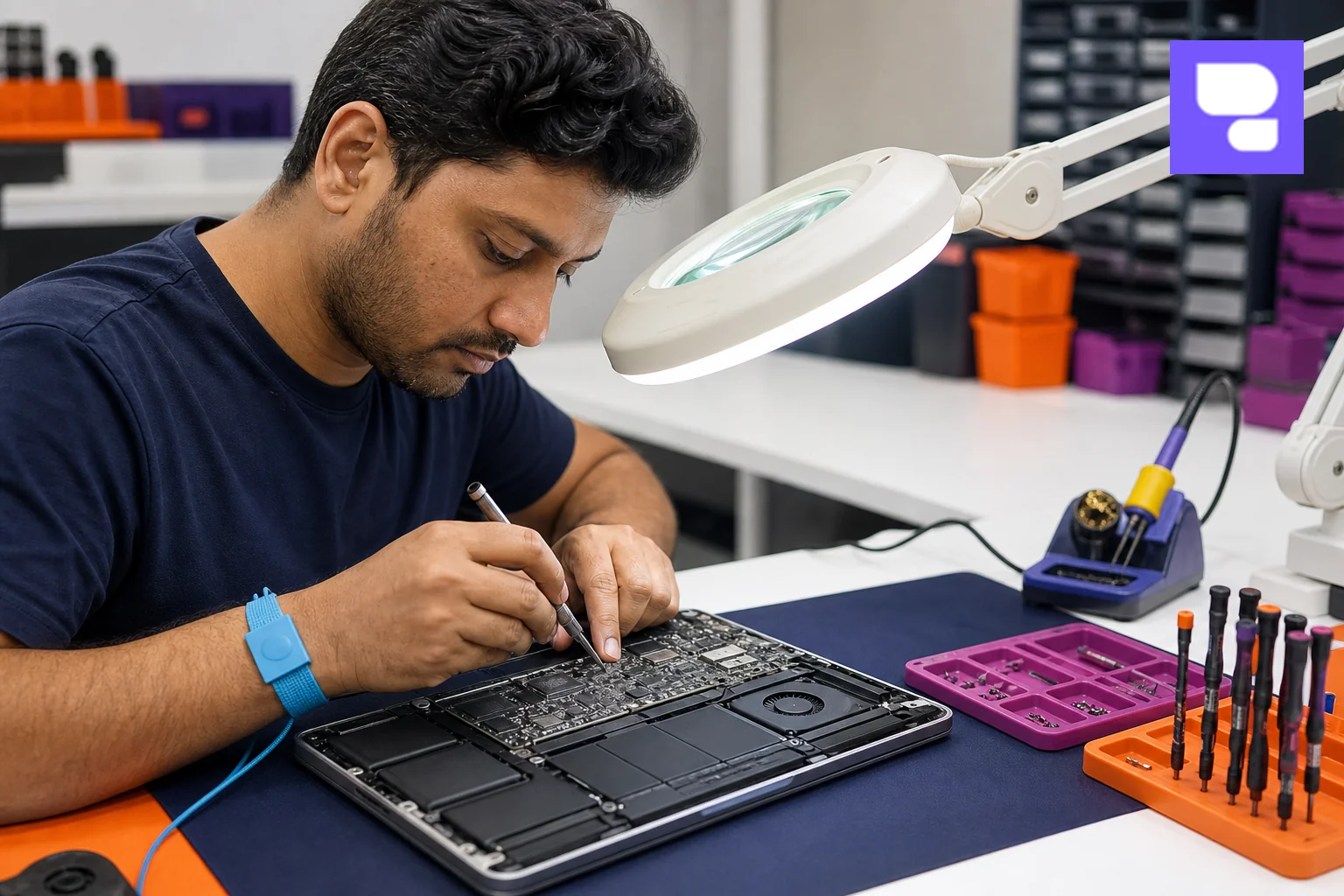
How HelloRe Diagnoses and Fixes Touch Bar Issues in Bengaluru
Once you've tried the free software steps and the Touch Bar is still dark, the next move is a proper diagnosis rather than guesswork. HelloRe runs a straightforward process built around convenience:
- Book a slot: Choose a doorstep visit to your home or office anywhere in Bengaluru, or opt for the free pickup and delivery service if you'd rather not wait around.
- Free diagnostic: A certified technician checks whether the fault is a Flexgate cable, a logic board issue, or liquid-related corrosion, and gives you a transparent breakdown before any work begins.
- Upfront pricing: You'll know the cost and expected turnaround before agreeing to the repair, with no surprise add-ons later.
- Certified parts and warranty: Repairs use quality-tested components and come with up to a 12-month warranty, so you're covered if the same issue resurfaces.
This approach directly answers the concerns most Bengaluru MacBook owners raise: the hassle of driving across town, uncertainty about pricing, and worry about handing over a device with sensitive data. Choosing a repair over a replacement also keeps a working logic board and Touch Bar module out of a landfill, which fits into HelloRe's broader push toward a circular economy for electronics in the city.
If your Touch Bar issue turned out to be tied to a swollen or aging battery pressing against the keyboard deck, it's worth checking our MacBook battery replacement cost guide as well, since battery swelling is a less obvious but fairly common trigger for keyboard and Touch Bar irregularities.
Frequently Asked Questions
Can I disable the Touch Bar and use function keys instead?
Yes. Go to System Settings, then Keyboard, and set the Touch Bar to show F1, F2, and other function keys by default. This won't fix an underlying hardware fault, but it's a useful workaround while you arrange a repair.
Does a Touch Bar repair affect Touch ID?
Touch ID and the Touch Bar are physically separate components connected to the same T1 or T2 chip, so a cable or module replacement usually leaves Touch ID untouched. If the chip itself is damaged, however, both features can be affected together, which is why an accurate diagnosis matters before any repair begins.
Is Touch Bar repair covered under AppleCare or a repair warranty?
If your MacBook Pro is still under AppleCare+, Touch Bar issues not caused by accidental damage are typically covered. For devices outside AppleCare, a third-party repair like the ones HelloRe performs comes with its own warranty of up to 12 months on the specific repair carried out.
How much does Touch Bar replacement typically cost?
Cost depends on whether it's a cable-only fix, a full module replacement, or a logic board repair, since parts and labor vary by model year. Contact HelloRe for a free diagnostic and an exact quote based on your specific MacBook Pro model.
Can water damage from a Bengaluru monsoon spill be fixed?
Often, yes, especially if the laptop is powered off immediately and brought in for cleaning before corrosion spreads. Time matters a lot here; a same-day or next-day diagnostic significantly improves the chances of a full recovery compared to waiting several days.
Contact HelloRe's Professional Technicians:
A dark Touch Bar doesn't automatically mean an expensive repair or a trip to a service center across town. Work through the force restart, SMC reset, and NVRAM steps first, since they resolve most software-related freezes within minutes. If the bar stays unresponsive, flickers, or your MacBook recently met a spill, it's time for a proper diagnosis rather than more guesswork. Repair my device now with HelloRe's certified technicians, available for doorstep visits, pickup and delivery, or a walk-in at HSR Layout, all backed by transparent pricing and up to a 12-month warranty. You can also view all MacBook repair services HelloRe offers, or explore contact options to get your Touch Bar checked before a small glitch turns into a bigger repair.