_679416c95c528014195b139b37edc91f.jpg)
Your cursor freezes mid-scroll, a two-finger swipe stops registering, or a click just refuses to land. If your MacBook trackpad is not working, most of the time it's a software glitch you can fix yourself in under five minutes, not a hardware failure that needs a workshop visit. This guide walks through the exact fixes to try, in order, and tells you honestly when it's time to stop troubleshooting and head to an apple service center in Bangalore.
Key Takeaways
- Start with a restart: A simple reboot resolves trackpad freezes caused by stuck background processes more often than any other single fix.
- Check the surface first: Moisture, dust, or an invisible film of hand cream on the trackpad can block touch sensors completely — no software involved.
- NVRAM/SMC resets solve deeper glitches: These clear stored hardware settings that sometimes get corrupted and stop the trackpad from communicating properly with macOS.
- One-sided clicking is a red flag: A trackpad that clicks fine on one side but feels stiff or raised on the other often means a swollen battery pushing against it from underneath — stop pressing on it and get it checked.
- Bengaluru users can skip the queue: HelloRe offers doorstep diagnosis for MacBook trackpad issues across the city, so you don't need to carry your laptop anywhere if software fixes don't work.
At a Glance: Trackpad Troubleshooting Summary
| Fix | Time Needed | Fixes Software Issues? | Fixes Physical Damage? |
|---|---|---|---|
| Restart MacBook | 1-2 minutes | Yes, often | No |
| Clean trackpad surface | 2-3 minutes | N/A | Yes, for residue/moisture |
| Update macOS | 10-30 minutes | Yes | No |
| Reset trackpad settings | 2-5 minutes | Yes | No |
| NVRAM/SMC reset | 3-5 minutes | Yes, deeper glitches | No |
| Safe Mode check for app conflicts | 5-10 minutes | Yes | No |
| Battery swelling / Flexgate inspection | Professional visit | No | Yes |
| Doorstep diagnostic with HelloRe | Same day, Bengaluru | Confirms root cause | Yes |

It sounds too simple to matter, but a restart is the single most effective fix for a MacBook trackpad that stops responding. macOS runs several background processes that manage touch input, gesture recognition, and Force Touch feedback. Any one of these can freeze without warning, especially after a long uptime with dozens of open apps.
Click the Apple menu and choose Restart, rather than just closing the lid. If the trackpad is too unresponsive to do even that, hold down the power button for a few seconds until the screen goes black, then press it again to boot up. Give it a full minute after restart before testing again, since some background services take a moment to reinitialize.
If this fixes the issue, don't ignore it. A recurring need to restart usually points to a specific app or a macOS bug that keeps resurfacing, which the later sections in this guide will help you isolate.
2. Check for Dirt, Moisture, or a Screen Protector Film on the Trackpad
Before touching any settings, look closely at the trackpad surface itself. Sweat, hand cream, condensation from an air-conditioned room, or a thin layer of dust can interfere with the capacitive sensors that detect your finger. This is especially common in Bengaluru's humid monsoon months, when moisture can linger on surfaces longer than usual.
Turn off your MacBook, unplug the charger, and wipe the trackpad gently with a dry, lint-free microfiber cloth. Avoid spraying any liquid directly on it. If you recently spilled something near the keyboard, even a small amount, that changes the situation entirely; skip ahead to the physical damage section below rather than continuing with software fixes.
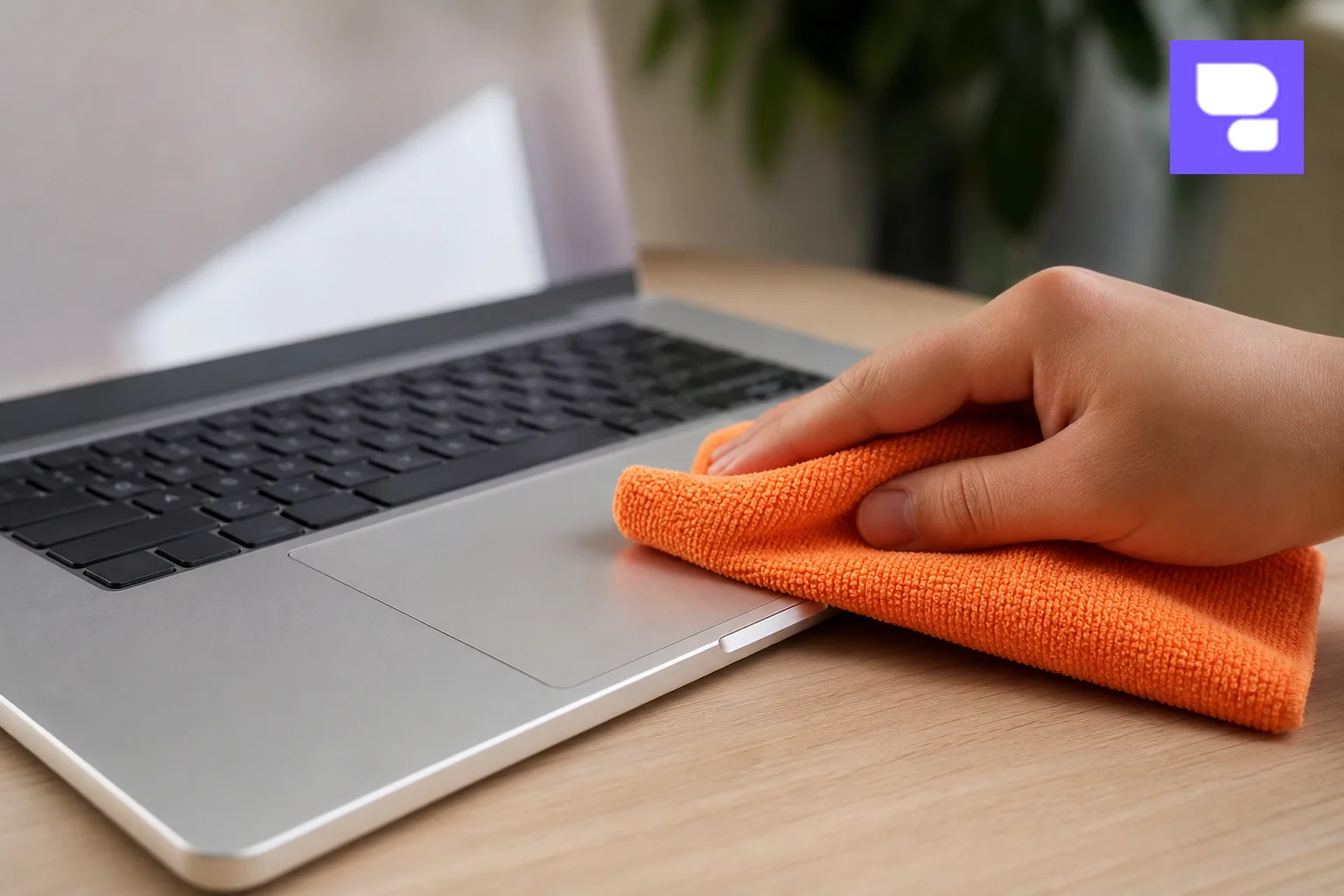
- Dry residue: Wipe with a microfiber cloth only, no liquids.
- Visible moisture or a recent spill: Power off immediately and don't attempt to use the trackpad until it's inspected.
- Sticky or uneven feel under your finger: Could indicate a cracked glass surface beneath, which needs professional attention.
3. Update macOS and Check for Pending Software Updates
Apple regularly patches trackpad driver bugs in macOS updates, and an outdated system is one of the most overlooked reasons a MacBook trackpad not working issue keeps happening. Go to System Settings > General > Software Update and check if anything is pending. Even minor point updates (like moving from macOS 15.4 to 15.5) sometimes include specific fixes for input device bugs mentioned in release notes.
If your Mac is several versions behind, install the update while connected to power, since trackpad and other driver files get rewritten during the process. After the update completes and your Mac restarts, test basic gestures like two-finger scroll, pinch-to-zoom, and a simple click before assuming the issue is resolved.
For deeper background on how outdated software affects overall MacBook health and when a hardware check becomes necessary, our MacBook repair guide for Bengaluru covers the full range of issues technicians see beyond just the trackpad.
4. Reset the Trackpad Settings in System Settings
Sometimes the trackpad itself works fine, but a setting has changed without your knowledge, especially after a macOS update resets preferences. Open System Settings > Trackpad and check the following:
- Tap to Click: Confirm it's toggled on if you rely on tapping rather than physically pressing down.
- Tracking speed: A slider set to the extreme low end can make the cursor feel unresponsive even though it's technically working.
- Force Click and haptic feedback: If this is switched off, clicks may feel dead or produce no feedback at all.
- Scroll direction and gestures: Check under the Scroll & Zoom and More Gestures tabs for anything accidentally disabled.
Also check System Settings > Accessibility > Pointer Control. There's a setting here that can disable the built-in trackpad entirely when an external mouse is connected, which confuses a lot of users into thinking their trackpad has failed when it's simply been switched off in software.
5. Reset NVRAM/PRAM and SMC
NVRAM (or PRAM on older Intel Macs) stores small bits of settings your Mac needs quick access to, including some display and peripheral configurations. The SMC (System Management Controller) handles power, battery, and certain hardware-level functions. When either gets corrupted, it can cause a trackpad to behave erratically, lag, or stop responding altogether, even though nothing is physically wrong.
On Intel-based MacBooks:
- Shut down completely.
- Turn it on, then immediately hold Option + Command + P + R for about 20 seconds.
- Release once you hear the startup sound a second time (or see the Apple logo appear and disappear twice on newer T2 chip models).
For an SMC reset on Intel MacBooks with a non-removable battery, shut down, then hold Shift + Control + Option and the power button together for 10 seconds, then release and power on normally.
On Apple Silicon MacBooks (M1, M2, M3, and later):
There's no manual NVRAM or SMC reset in the traditional sense. Simply shutting down completely and restarting resets these controllers automatically, since Apple redesigned this process starting with the M1 chip. If issues persist after a full shutdown and restart, that's a stronger signal the problem sits at the hardware level rather than in stored settings.
6. Check for Third-Party Apps or Peripherals Interfering with the Trackpad
Apps like BetterTouchTool, Magnet, or certain window-management utilities hook directly into trackpad gesture recognition. A conflict between two such apps, or a bug in a recent update to one of them, can make the built-in trackpad feel sluggish or stop registering gestures correctly.
Boot into Safe Mode to test this theory: shut down, then press and hold the power button until you see "Loading startup options," select your main drive, hold Shift, and click "Continue in Safe Mode." Safe Mode disables non-essential login items and third-party kernel extensions. If the trackpad works normally here, a background app is the culprit, and you can uninstall or update it once you're back in normal mode.
Also check whether a Bluetooth mouse, a Magic Trackpad, or another pointing device is paired and accidentally set as the default input, which can make the built-in trackpad seem unresponsive when it's actually just been deprioritized in favor of the external device.
7. Inspect for Physical Damage: Battery Swelling and Flexgate
If you've tried every software fix above and the trackpad still won't respond, or if it clicks unevenly on one side, it's time to consider physical causes. Two issues come up often in the MacBooks we see at HelloRe:
Battery swelling: Lithium-ion batteries can expand slightly as they age, especially in units several years old or ones that were regularly charged to 100% and left plugged in. Because the battery sits directly beneath the trackpad on most MacBook models, even mild swelling pushes the trackpad upward from underneath. This shows up as one side of the trackpad feeling raised, stiff, or clicking with a different sound than the other side. If you notice this, stop pressing on the trackpad, since continued pressure on a swollen battery is a genuine safety risk. Our detailed breakdown on MacBook battery replacement cost in India explains what typically drives this kind of damage and what replacement involves.
Flexgate: This is a known issue on 2016 and 2017 MacBook Pro models, where the thin display flex cable wears out from repeated opening and closing of the lid. While Flexgate is primarily a display backlight problem, the same ribbon cable pathway sits close to the trackpad's connection to the logic board, and physical strain in that area can sometimes cause intermittent trackpad dropouts alongside screen flickering.
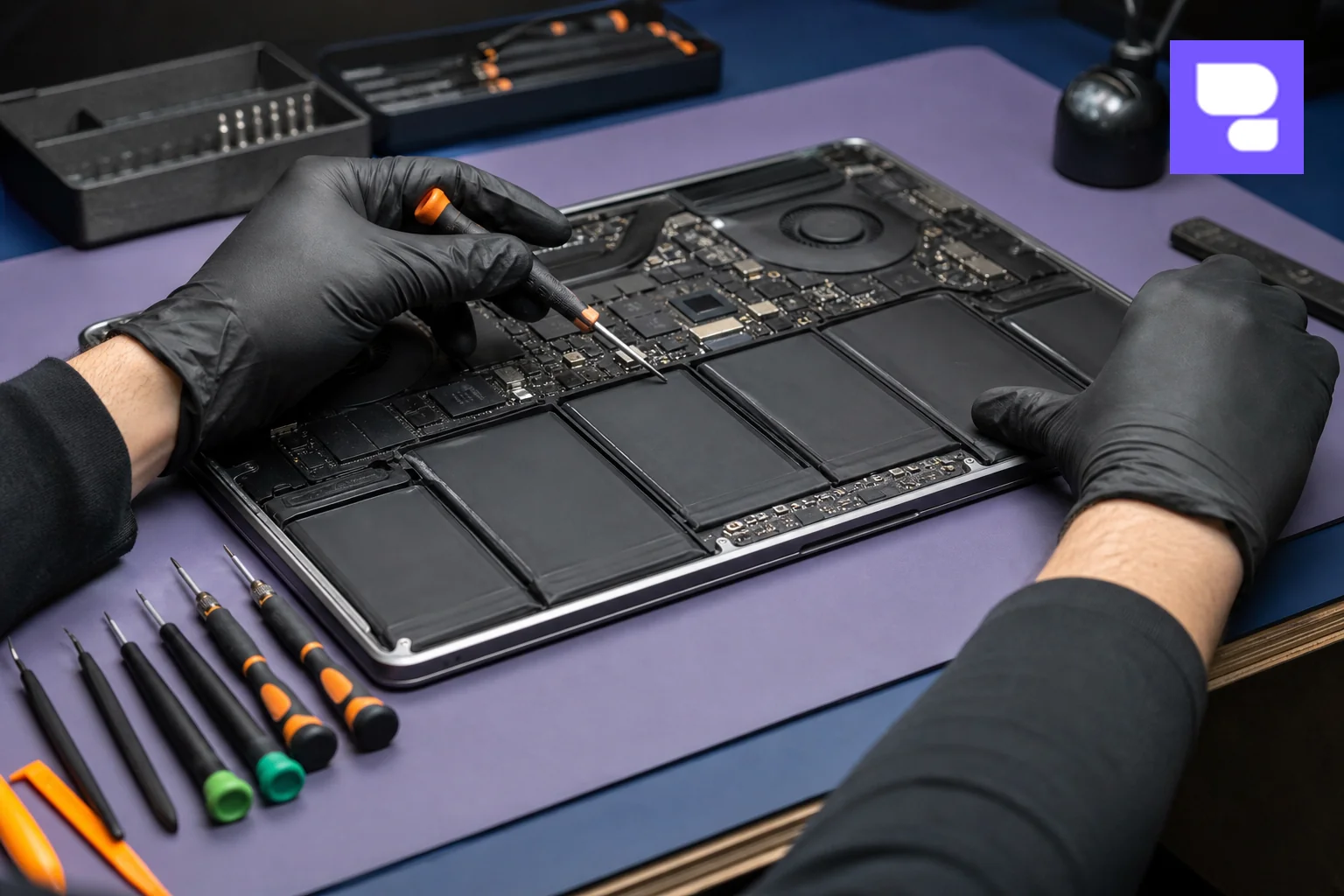
Neither of these issues can be fixed through software, and attempting to force the trackpad flat yourself risks puncturing a swollen battery. Both call for a technician to open the unit safely and assess the internal components.
When Software Fixes Don't Work: Signs You Need a Professional Repair
Here's a simple way to decide if you've moved past DIY territory:
- You've restarted, updated macOS, and reset NVRAM/SMC, and the trackpad still doesn't respond consistently.
- One side of the trackpad sits higher than the other, or clicking feels different depending on where you press.
- There's visible cracking, a gap around the edges, or the trackpad has become loose.
- Your MacBook was recently exposed to liquid, even a small splash, before the issue started.
- The trackpad worked fine until after a drop or impact.
Any of these point toward hardware, not software. Continuing to force-click or press on a trackpad that's physically compromised can make the damage worse and, in the case of a swollen battery, genuinely unsafe.
How HelloRe Fixes MacBook Trackpad Problems in Bengaluru
Once you've ruled out the software causes, getting an honest, transparent diagnosis matters more than guessing at what's wrong. HelloRe serves Apple device owners across Bengaluru with a straightforward process built around convenience: a certified technician can visit your home or office for a doorstep diagnosis, or you can drop by the store at HSR Layout if you'd rather watch the repair happen in person.
Every trackpad issue is diagnosed first, so you know exactly whether it's a battery swelling problem, a logic board connection issue, or physical damage to the trackpad assembly itself, before any repair cost is confirmed. HelloRe uses certified parts and backs repairs with up to a 12-month warranty, which matters for a component like the trackpad that sits at the center of daily use.
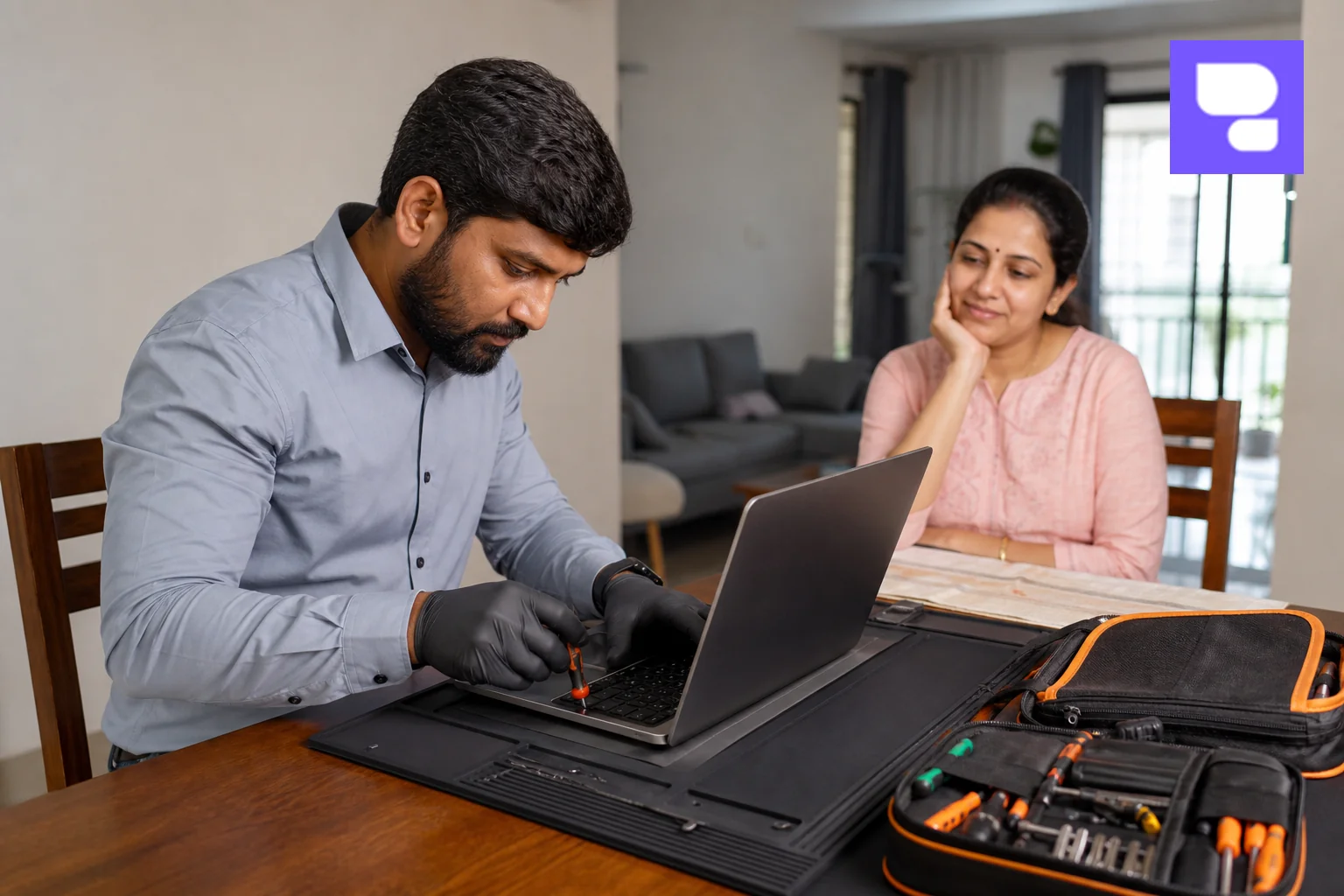
This approach solves several of the real frustrations MacBook owners run into with traditional repair centers: no need to travel across the city, no vague pricing quoted after the fact, and no anxiety about handing over a device with all your work files still on it. If you'd rather not wait for a mail-in repair or a multi-day queue at an authorized service center, you can repair your device now and have a technician assess the trackpad the same day in most parts of the city.
For a broader look at what a full MacBook service covers beyond just the trackpad, including keyboard, battery, and logic board repairs, see our MacBook repair doorstep service guide. And if your trackpad issue started after a spill, our guide on handling MacBook battery costs is a useful companion read, since liquid damage and battery swelling often show up together.
Frequently Asked Questions
Why is my MacBook trackpad clicking on one side only?
This is almost always mechanical, not software-related. It usually means a swollen battery is pushing up against the trackpad from below, or one of the internal click sensors (Taptic Engine on newer models) has shifted slightly out of alignment. Stop pressing hard on that spot and have it inspected soon.
Can a software update fix a physical trackpad problem?
No. If the trackpad is misaligned, cracked, or being pushed by a swollen battery, no macOS update or settings change will resolve it. Software fixes only help when the trackpad hardware itself is intact and the issue is a driver, permissions, or app conflict.
Is trackpad repair covered under warranty?
If your MacBook is still under Apple's original warranty or AppleCare+, and the issue isn't caused by accidental damage, it may be covered by Apple directly. Outside of that window, independent repair services like HelloRe offer their own warranty (up to 12 months) on parts and labor for out-of-warranty repairs, which is worth checking before assuming a repair will be a one-time-only fix.
How much does MacBook trackpad repair cost in Bengaluru?
Cost depends on whether the issue is the trackpad assembly itself, a battery replacement causing the swelling, or a logic board connection problem. Pricing varies by MacBook model and the exact root cause, so it's best to get a diagnostic first rather than assume a flat rate. You can contact HelloRe for an accurate quote once the technician identifies the actual issue.
Can I use an external mouse while waiting for repair?
Yes. Connecting a USB or Bluetooth mouse is a safe, practical workaround while you arrange a repair. It won't fix the underlying issue, but it lets you keep working without pressing on a potentially damaged or swollen area of the trackpad.
Contact HelloRe Professional Technician:
A MacBook trackpad that stops responding is rarely the end of the story. Most cases clear up with a restart, an update, or a quick settings reset, and the ones that don't almost always point to something specific, like a swollen battery or a loose connection, that a certified technician can confirm in minutes. If you've worked through this guide and the trackpad still isn't behaving, don't keep pressing on it hoping it resolves itself. Book a repair now with HelloRe for a doorstep diagnostic anywhere in Bengaluru, or visit the HSR Layout store if you'd rather see the fix happen in person. You can also browse all MacBook repair services to see the full range of issues HelloRe handles, from trackpad and keyboard problems to battery and logic board repairs.